GoodSync supports connections to MEGA S4, allowing you to back up and synchronize files between your devices and MEGA S4 storage.
This guide explains how to connect your MEGA S4 storage to GoodSync and select an S4 bucket for use in a GoodSync job.
Before You Begin
Before creating the connection, make sure you have:
- An active MEGA account.
- MEGA S4 access enabled for your account.
- An S4 bucket created in your MEGA account.
- Your MEGA S4 access credentials available.
Important: MEGA S4 is different from the standard MEGA file storage connection in GoodSync. If you want to connect to your regular MEGA files, use the standard MEGA connection instead.
Step 1: Create or Review Your MEGA S4 Storage
Sign in to your MEGA account and confirm that S4 storage is available for your account.
If S4 is not currently shown, sign out of your MEGA account and sign back in.
From your MEGA account, create or locate the S4 bucket that you want GoodSync to access.
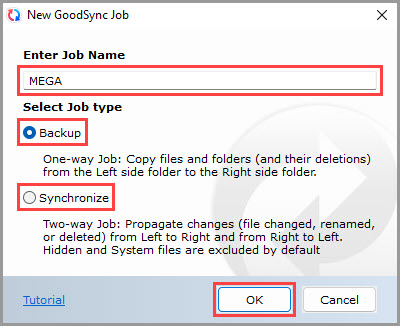
Step 2: Create a New GoodSync Job
- Open GoodSync.
- Select New Job.
- Enter a name for the job.
- Select the required job type.
- Click OK.
Step 3: Select MEGA S4
Click the folder icon on the side of the job that you want to connect to MEGA S4.
From the available storage services, select MEGA S4.
Step 4: Enter Your MEGA S4 Connection Information
Enter the MEGA S4 account and connection information requested by GoodSync.
Important: MEGA is moving S4 services to the megas4.com domain. Use the endpoint information provided for your MEGA S4 account.
Step 5: Select Your S4 Bucket
After the connection has been authenticated, GoodSync will display the available MEGA S4 storage locations.
- Select the required S4 bucket.
- Select a folder inside the bucket if needed.
- Click OK to save the location.
- Step 6: Analyze and Sync
Once both sides of the GoodSync job have been configured, click Analyze.
Review the proposed file changes before starting the synchronization.
When the changes are correct, click Sync.
MEGA vs. MEGA S4
| Connection | Use |
|---|---|
| MEGA | Connects GoodSync to the standard files and folders stored in your MEGA account. |
| MEGA S4 | Connects GoodSync to MEGA's S4 object storage and S4 buckets. |
Troubleshooting
If GoodSync cannot connect to MEGA S4, check the following:
- Confirm that MEGA S4 is enabled for your MEGA account.
- Confirm that the selected S4 bucket exists.
- Verify that the S4 credentials entered in GoodSync are correct.
- Verify that the credentials have permission to access the selected bucket.
- Confirm that the S4 endpoint matches the endpoint provided by MEGA.