If you haven't already, download and install GoodSync.
With GoodSync, you can include data stored in your Amazon Cloud Drive to be one (or both) of the sides in any data backup or synchronization job.
GoodSync also allows you to protect privacy of your data on Amazon Cloud Drive by encrypting it on your device. You can automatically synchronize with encrypted Amazon Cloud Drive and/or access encrypted data transparently via GoodSync Explorer.
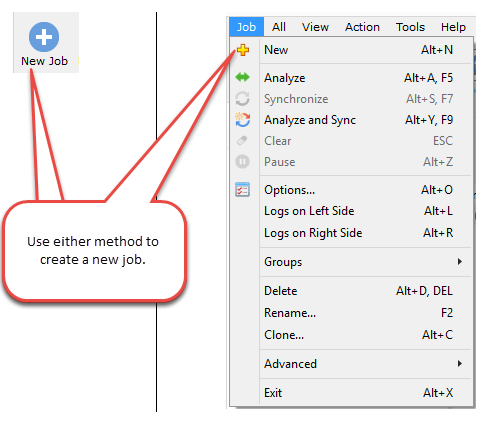
1) In the Job menu, select "New" or click the "New Job Button" in the toolbar.
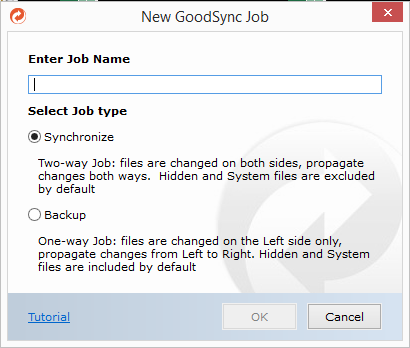
2) In the New GoodSync Job prompt:
- Enter the name for your new Job.
- Select Backup or Synchronize as your Job type.
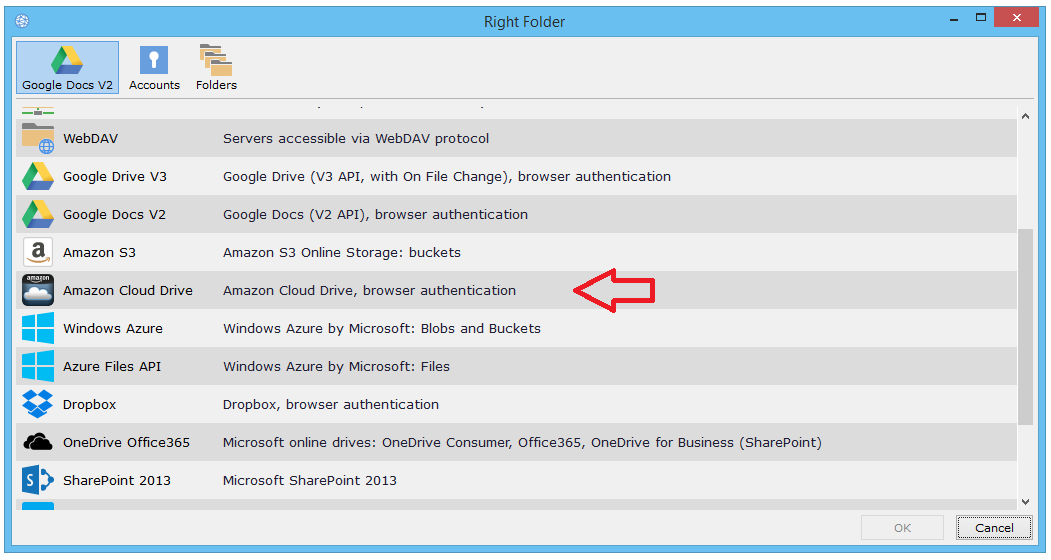
3) Select one of the sides (folders) which you would like to connect to your Amazon Cloud Drive account (Left or Right Folder)
4) Select Amazon Cloud Drive from the list of supported services.
5) Click "Go" at the top-right corner and a browser window will appear to request credentials for authentication.

6) In the authentication window provide your email and password, then click "Sign in using our secure server."

7) After permission for GoodSync is given, your Amazon Cloud Drive account content will be shown in GoodSync interface. Select the files and folders that will be a part of your GoodSync Job and click the "OK" button. 
8) After your Amazon Cloud Drive files and folders have been selected, you may read about other GoodSync Job options here.